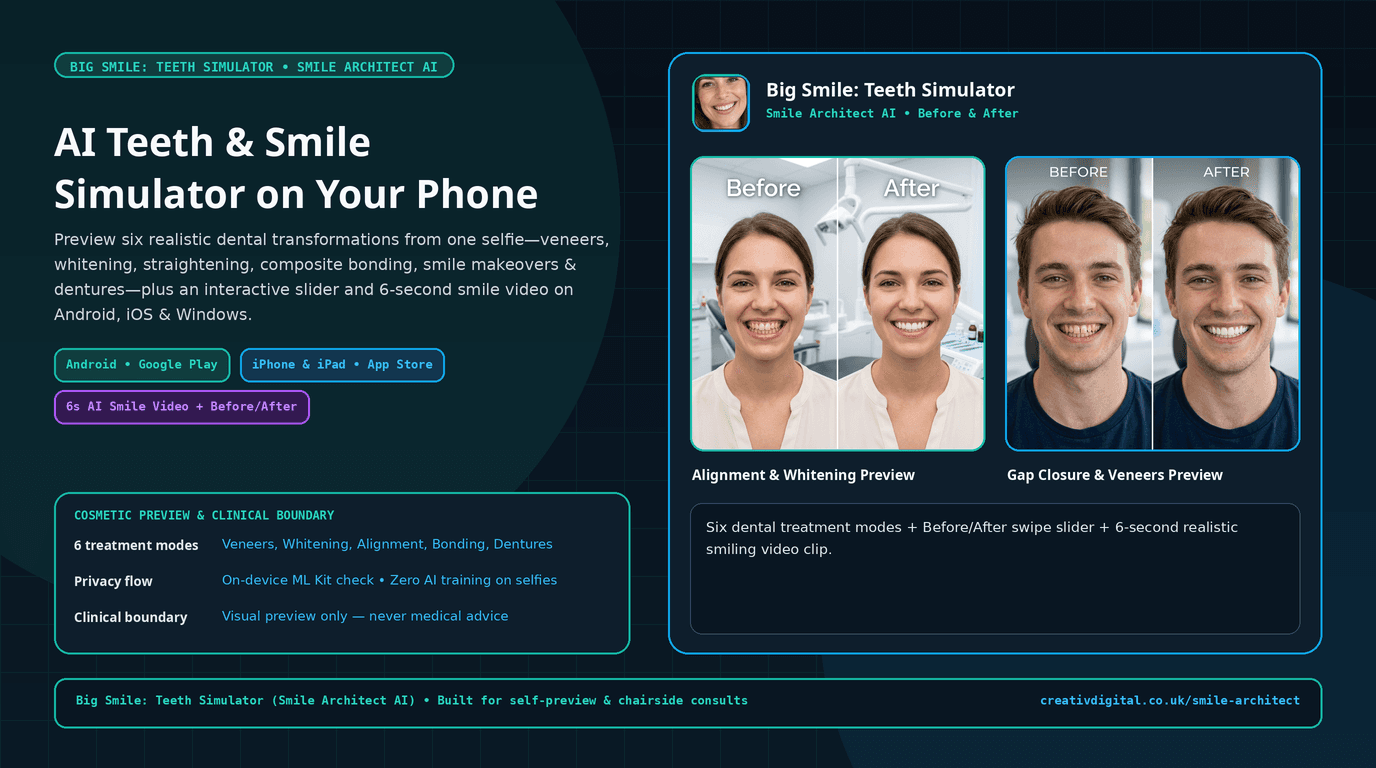
The biggest hurdle before booking a cosmetic dental consultation is rarely the chair time—it is picturing what a change will actually look like on your own face. Reference photos from another patient carry different lip posture, tooth-to-gum ratios, and skin undertones, while clinical terms like edge bonding, four upper porcelain veneers, or subtle whitening stay abstract until you see a realistic preview.
We built Smile Architect AI—published on Google Play as Big Smile: Teeth Simulator and expanding to iPhone and iPad on the Apple App Store (iOS) alongside Android and Windows—so patients and dental practices can preview cosmetic options from a single selfie before committing to treatment.
One Selfie, Six Dental Simulation Modes, and a 6-Second Smile Video
A useful teeth simulator app cannot just slap generic white shapes over a smiling mouth. Big Smile: Teeth Simulator (Smile Architect AI) analyzes facial proportions, ambient lighting, and existing tooth geometry so cosmetic changes match your own face across six dedicated simulation modes:
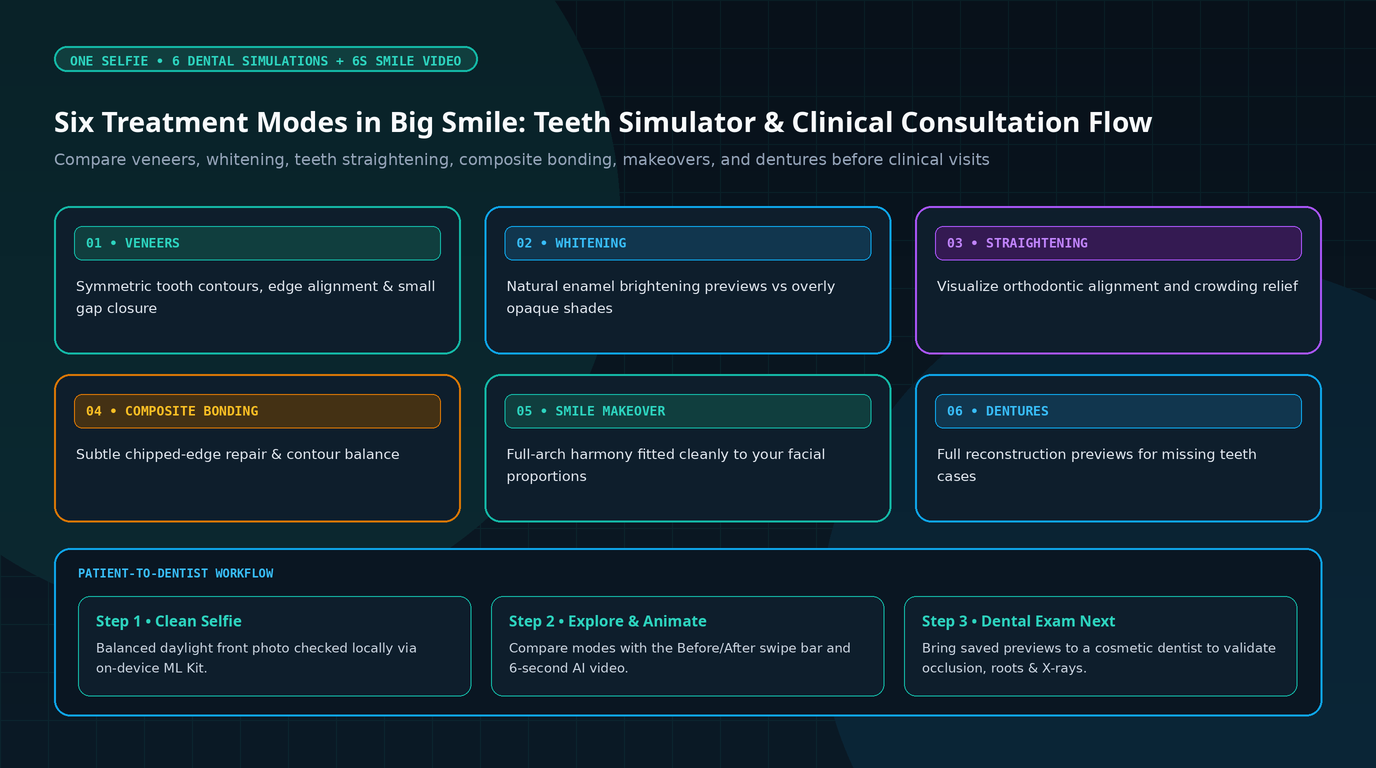
- Veneers: Explore balanced upper-arch symmetry, refined tooth length, and closed minor spacing.
- Whitening: Compare subtle, natural enamel brightening against your current shade rather than flat bleached presets.
- Straightening: Preview how crowded or slightly rotated teeth could look once aligned orthodontically.
- Composite Bonding: See conservative fixes for chipped edges, uneven wear, or small gaps before choosing full porcelain restorations.
- Smile Makeover: Preview full cosmetic harmony balanced across your natural lip line and overall facial proportions.
- Dentures: Visualize restorative reconstructions for missing or severely worn teeth.
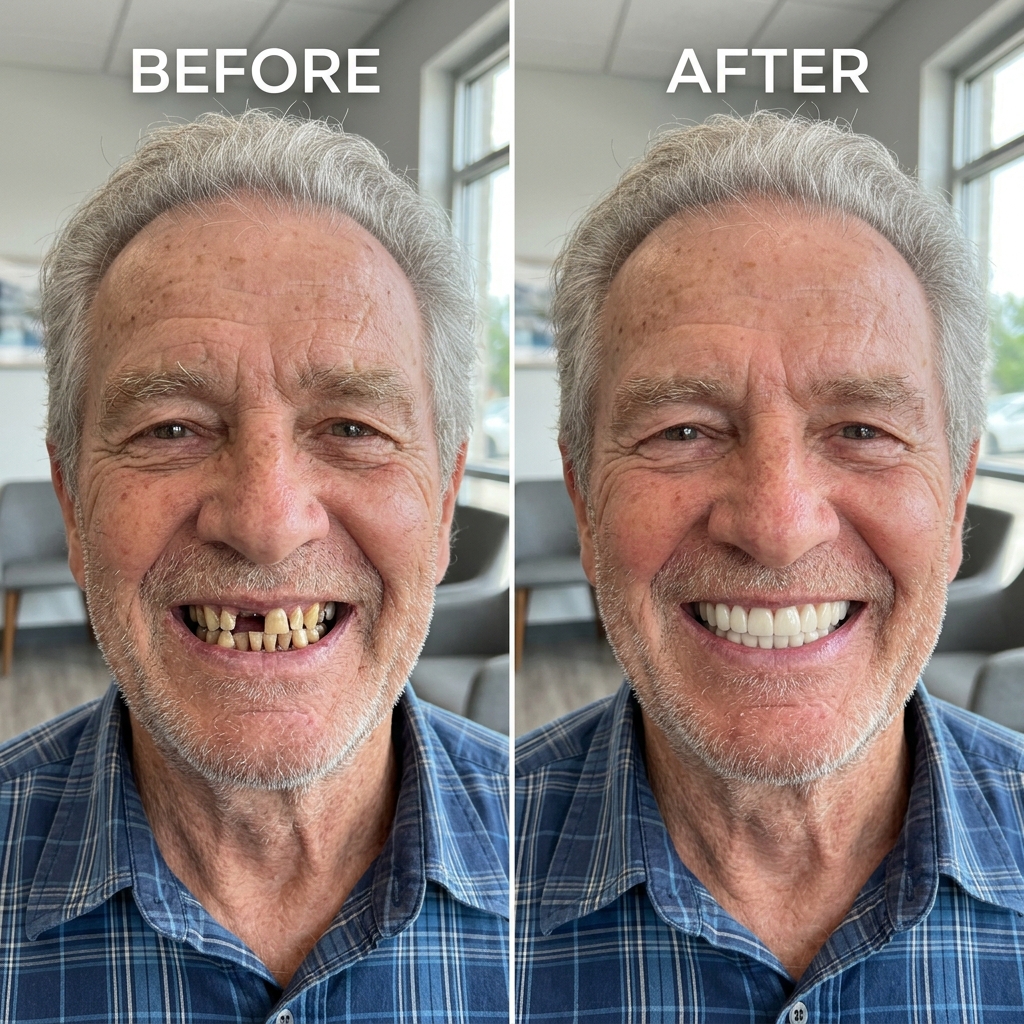
Once rendered, an interactive Before & After swipe slider lets you compare changes tooth-by-tooth against your original selfie—and Smile Video generates a realistic ~6-second video clip showing your simulated smile in natural movement (laughing and smiling), revealing how tooth length and brightness actually behave in motion rather than in a frozen frame.
4 Real Situations Where Patients and Dental Clinics Use the App
Situation 1: Testing Whether Whitening, Composite Bonding, or Veneers Fits Your Goals at Home
Patients routinely walk into a cosmetic consultation asking for full veneers when mild alignment plus teeth whitening or composite bonding on two front teeth would achieve the look they actually want.
Testing two or three modes on the exact same selfie at home clarifies the difference between shade adjustment and shape restoration—giving you concrete visual preferences before sitting in the chair.
Situation 2: Chairside Visual Communication Inside Dental Clinics
Explaining restorative symmetry or gap closure strictly with study casts takes time. Dentists using Big Smile: Teeth Simulator / Smile Architect AI across tablets, phones, or Windows desktops can demonstrate possible directions quickly during initial appointments—or send case invitations and simulation credits to patients to review calmly before deciding on a treatment plan.
Situation 3: Sharper Alignment Between Patient, Dentist, and Dental Lab
When patient, cosmetic dentist, and laboratory ceramist look at the same Before & After visual target from day one, expectations around incisal silhouette, midline alignment, and natural shade brightness are aligned long before physical wax-ups or temporary mock-ups begin.
Situation 4: Cross-Platform Flexibility Across iPhone, iPad, Android & Windows
Because patients bring iPhones and clinics run Android tablets, iPads, or Windows consultation PCs, the ecosystem spans every major device:
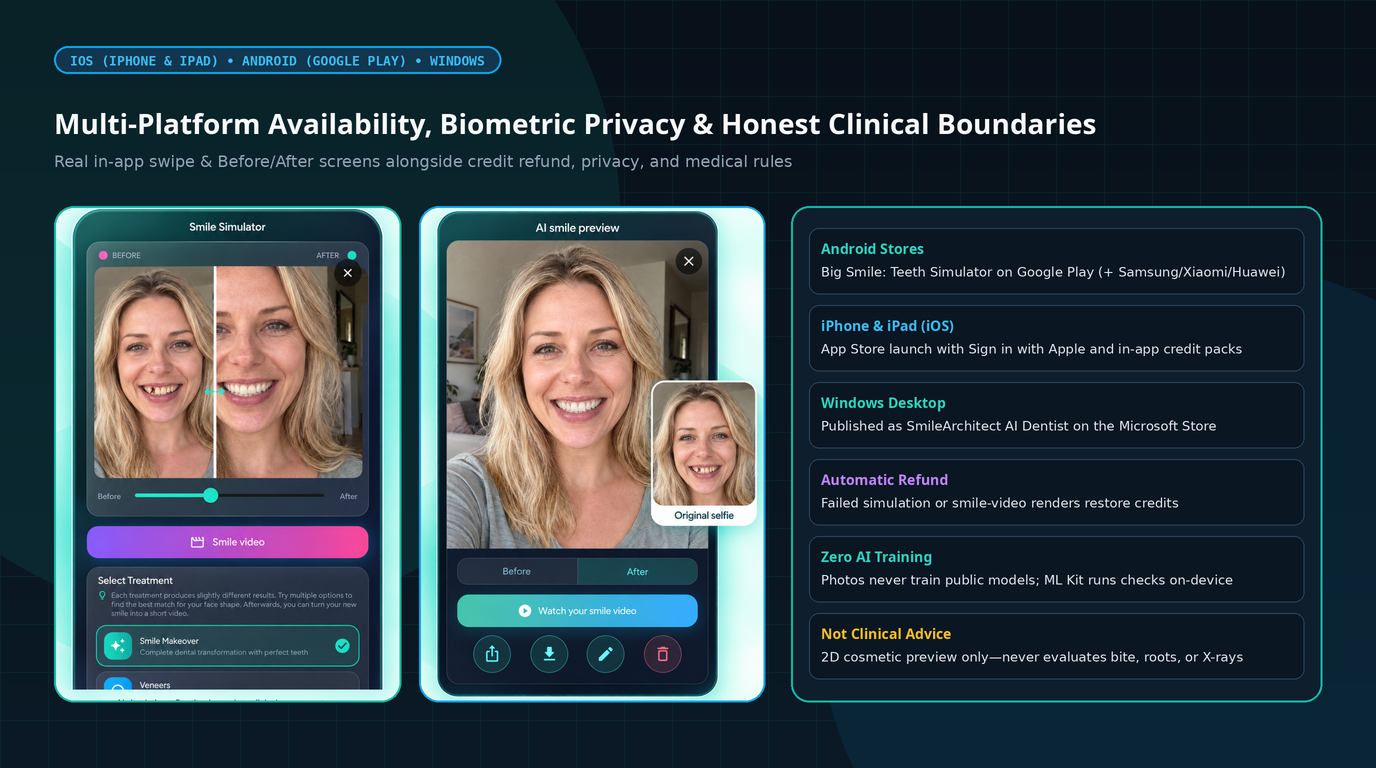
- Android: Live on Google Play under Big Smile: Teeth Simulator (
com.smilearchitect.smilearchitect_ai), plus Samsung Galaxy Store, Xiaomi GetApps, and Huawei AppGallery. - iOS (iPhone & iPad): Launching on the Apple App Store (Smile Architect, featuring Sign in with Apple, native Apple in-app credit packs, and automatic credit refunds whenever a simulation or video generation fails).
- Windows Desktop: Live on the Microsoft Store as SmileArchitect AI Dentist for clinic reception and consultation displays.
How to Capture a Selfie That Produces Natural Dental Previews
The app runs on-device facial checks with Google ML Kit before rendering, and four quick camera habits noticeably elevate realism:
- Face balanced daylight (skip harsh flash): Stand facing soft window light so natural shadows define individual teeth cleanly.
- Use a full, relaxed smile: Ensure upper teeth and incisal edges are clearly visible rather than partially covered by your lips.
- Disable beauty filters: Turn off camera smoothing/retouch filters before taking the photo so natural enamel edges remain crisp.
- Compare conservative modes side by side: Try Whitening and Composite Bonding on the exact same selfie alongside Veneers or Smile Makeover before leaning toward the most invasive option.
Privacy Rules & Honest Clinical Limits (What an AI Teeth Simulator Cannot Do)
Transparent boundaries protect both patients and dental practices, as detailed in our published iOS Privacy Policy and iOS Terms of Use:
- Your photos never train AI models: Photos, previews, and smile videos are processed strictly with explicit consent (intended for users aged 18+) and never used to train third-party AI models. You can delete generated items from Gallery or wipe your entire account anytime in Settings.
- Visual guide only—never medical or dental advice: A 2D selfie preview cannot examine tooth roots, nerve vitality, decay, gum health, bone density, or bite occlusion. Real results vary by biology and clinical feasibility—only a qualified dentist with an in-person exam and X-rays can plan safe care.
- No misleading clinic advertising: Generated simulations help align treatment conversations and personal exploration; they must not be published as real clinical before-and-after patient cases.
Try the App Today or Explore Our Dental & Mobile Engineering
Install Big Smile: Teeth Simulator on Google Play right now, or see all supported stores—including the iPhone & iPad Apple App Store release, Windows Microsoft Store, Samsung Galaxy Store, Xiaomi GetApps, and Huawei AppGallery—on our Smile Architect AI page.
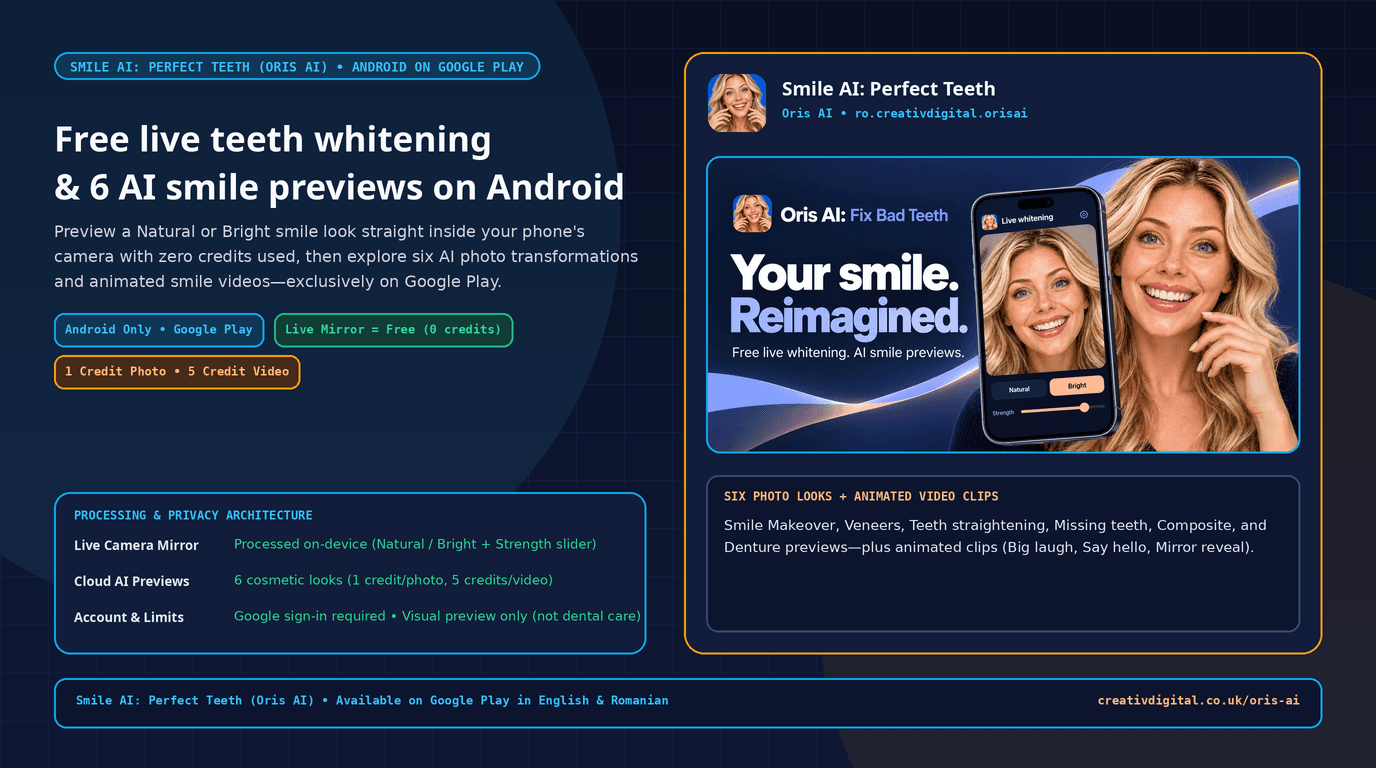
If you operate a practice or build healthcare products, also explore XrayDent AI for drafting structured notes from dental radiographs, Oris AI for live camera teeth whitening, and PatientPath for Windows clinic management—or contact our team for custom mobile and web app engineering and AI/ML development.
Frequently Asked Questions
Why is the app called both "Big Smile: Teeth Simulator" and "Smile Architect AI"?
They refer to the exact same product engineered by Creativ Digital (com.smilearchitect.smilearchitect_ai). On Google Play the listing title is Big Smile: Teeth Simulator so shoppers searching for a teeth simulator find it quickly, while the web hub, Windows app, and Apple iOS App Store edition use the Smile Architect (Smile Architect AI) name.
What dental procedures can I preview from one photo?
You can switch between Veneers, Whitening, Straightening, Composite Bonding, Smile Makeover, and Dentures—then inspect changes on an interactive Before & After slider or animate them into a ~6-second AI smile video.
Does it run on iPhone and iPad (iOS) as well as Android?
Yes. In addition to Android (Google Play, Samsung Galaxy Store, Xiaomi GetApps, Huawei AppGallery) and Windows (Microsoft Store), the dedicated iPhone and iPad iOS edition (Smile Architect, with Sign in with Apple and automatic failed-render credit returns) is rolling out on the Apple App Store alongside published iOS Privacy Policy and iOS Terms.
Do unused or failed simulation credits get wasted?
No. Every image simulation costs 1 credit and video credits are displayed clearly before starting; if a simulation or smile video fails to generate, credits are returned automatically to your account.